



notebooks/printing-notebooksNotebooksnotebooks7print notebook, binder, print labels, Ctrl+P2026-10-21/articles/printing-notebooks
Printing Notebooks
Updated October 21, 2026
Printing from Notebooks is a quick way to print hard copies for a witness, argument, or for attorney review.
How to Print Notebooks
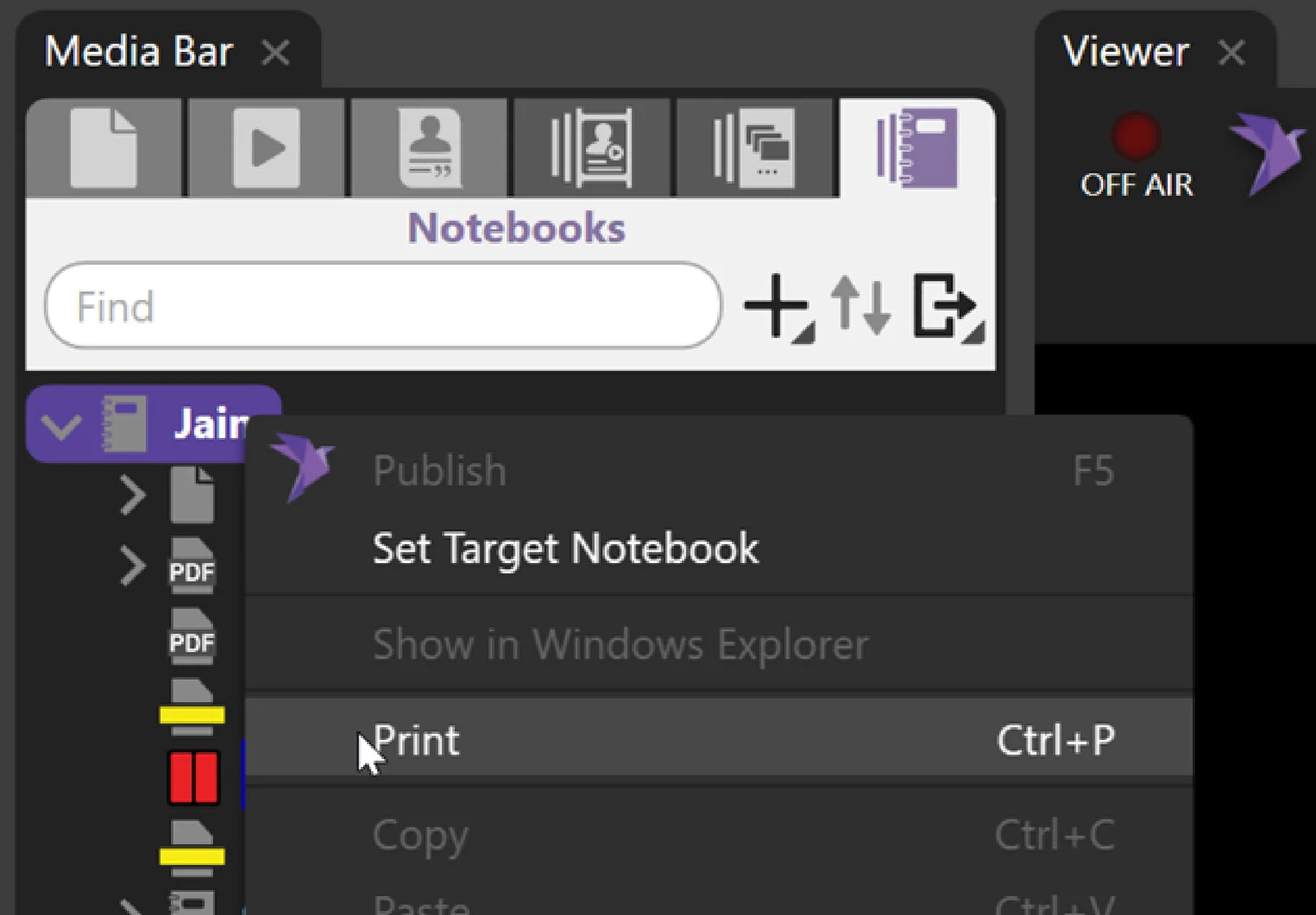
Right-click the notebook and select Print.
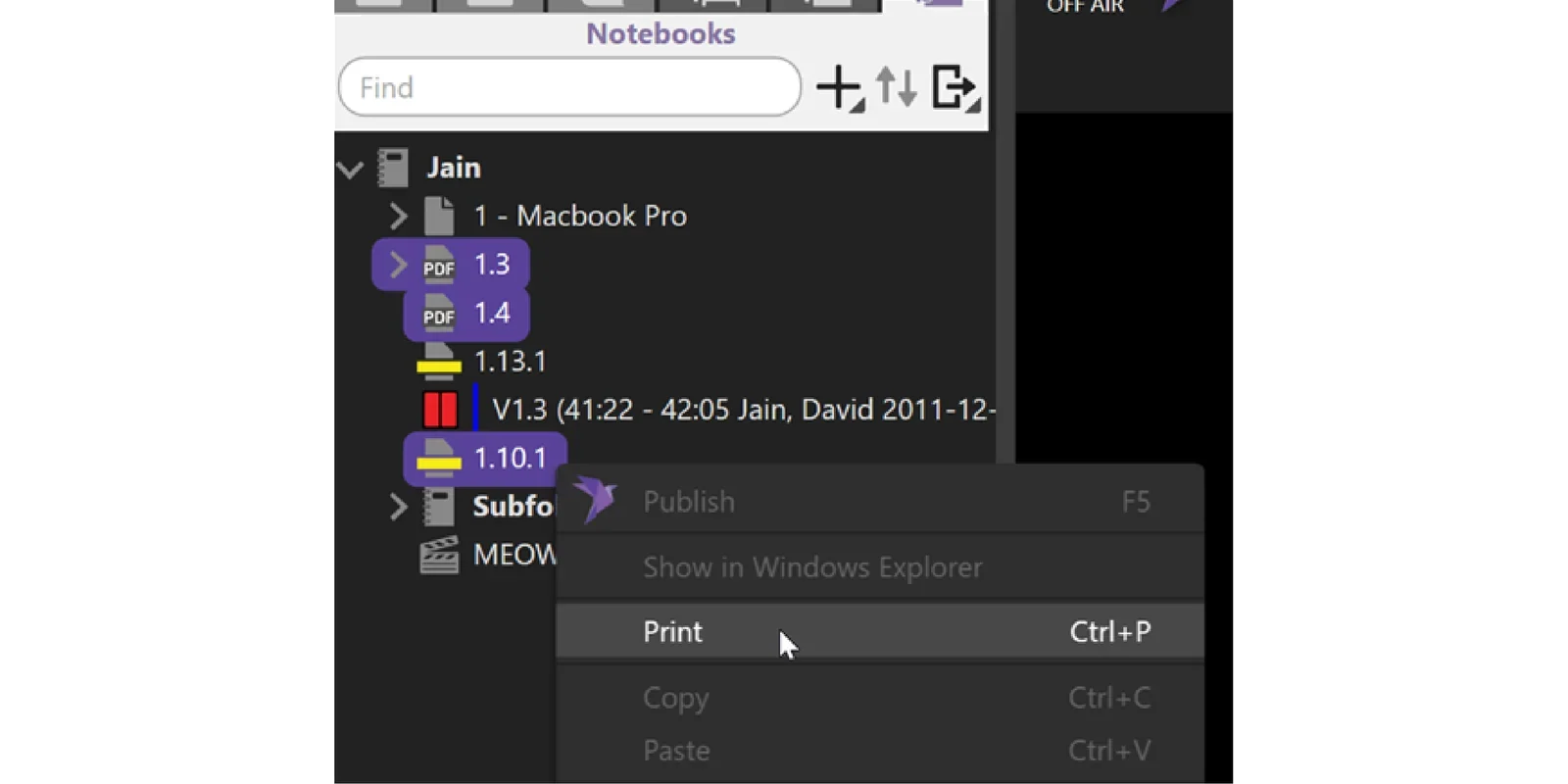
To print only some items, hold Ctrl and select each item you want to print. Once you have selected the items within the Notebook that you want to print, right-click, and select Print from the drop-down menu.
The Print dialog has these options:
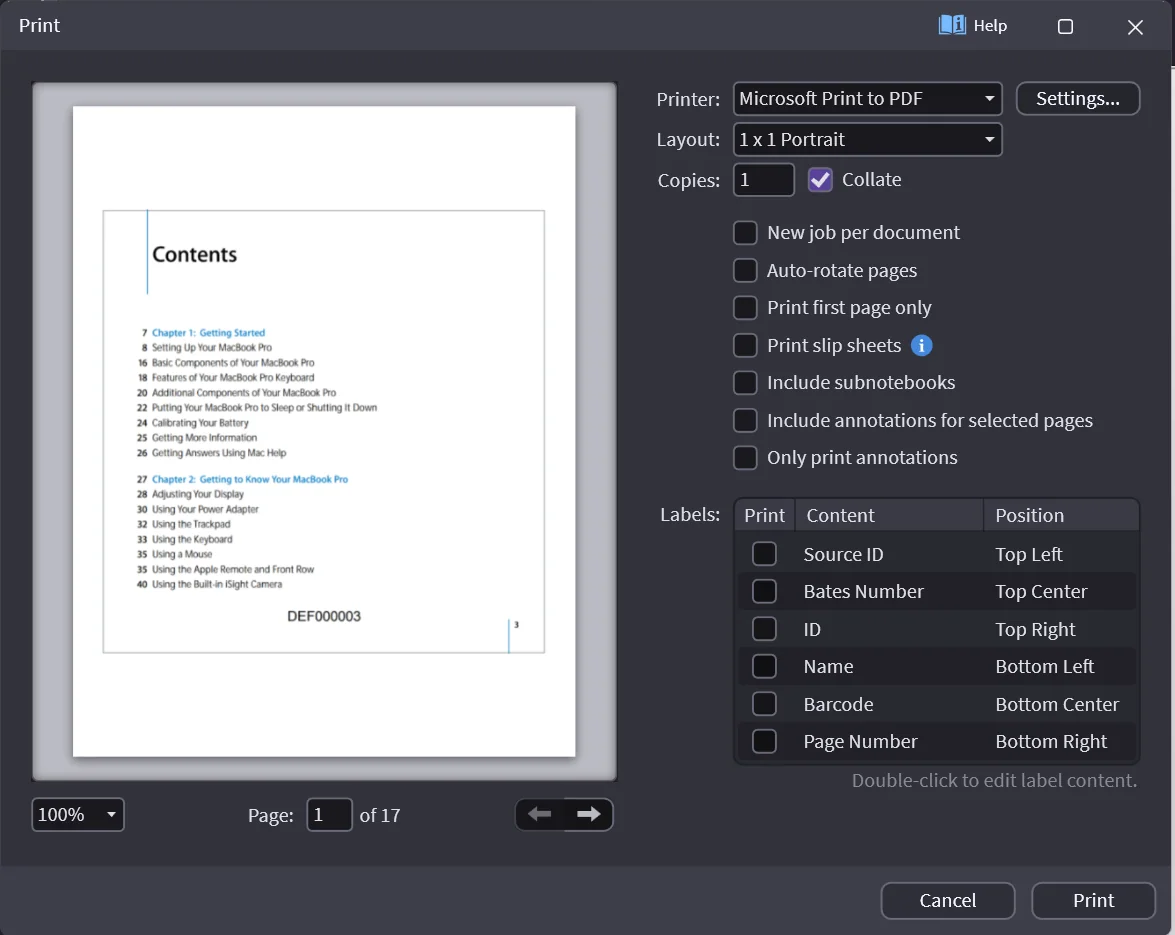
- New job per document – Creates a separate PDF for each document printed from the notebook
- Auto-rotate pages – Rotates any pages that have text
- Print first page only – Prints the first page of each document in the notebook
- Print slip sheets – Prints slip sheets in between each document in the notebook
- Include subnotebooks – Print all documents from subnotebooks
- Include annotations for select pages – Will also print annotations from pages in the notebook
- Only print annotations – Will only print annotations from pages in the notebook
print notebook, binder, print labels, Ctrl+P
Still stuck? Email support@oncuetech.com.