



Split Screen Page Lock
Updated January 2, 2025
This article answers
- I keep forgetting to unsplit my viewer and presentation screen before I launch the next document. Is there a simpler way to present a single page after a split screen?
Locking Split-Screen Annotations
OnCue has two panels (zones), so two pages can be displayed at once in Presentation, either vertically (side by side) or horizontally (one on top of the other). Each page shares equal space on the screen but can be zoomed or annotated independently by clicking the area of the screen you wish to be active. You can also change the pages independently.
You can lock a split screen so its pages cannot be changed. After a locked split screen, the next single-page ID you launch appears as a single page. You will still be able to annotate as much as you want.
The steps below show how to prepare and lock a split screen, which is useful when presenting from a notebook.
Note: Split Screen Page Lock is on by default.
Prepare a Split Screen and Lock Your Pages
Split the screen in the Viewer with a hotkey or the split button.
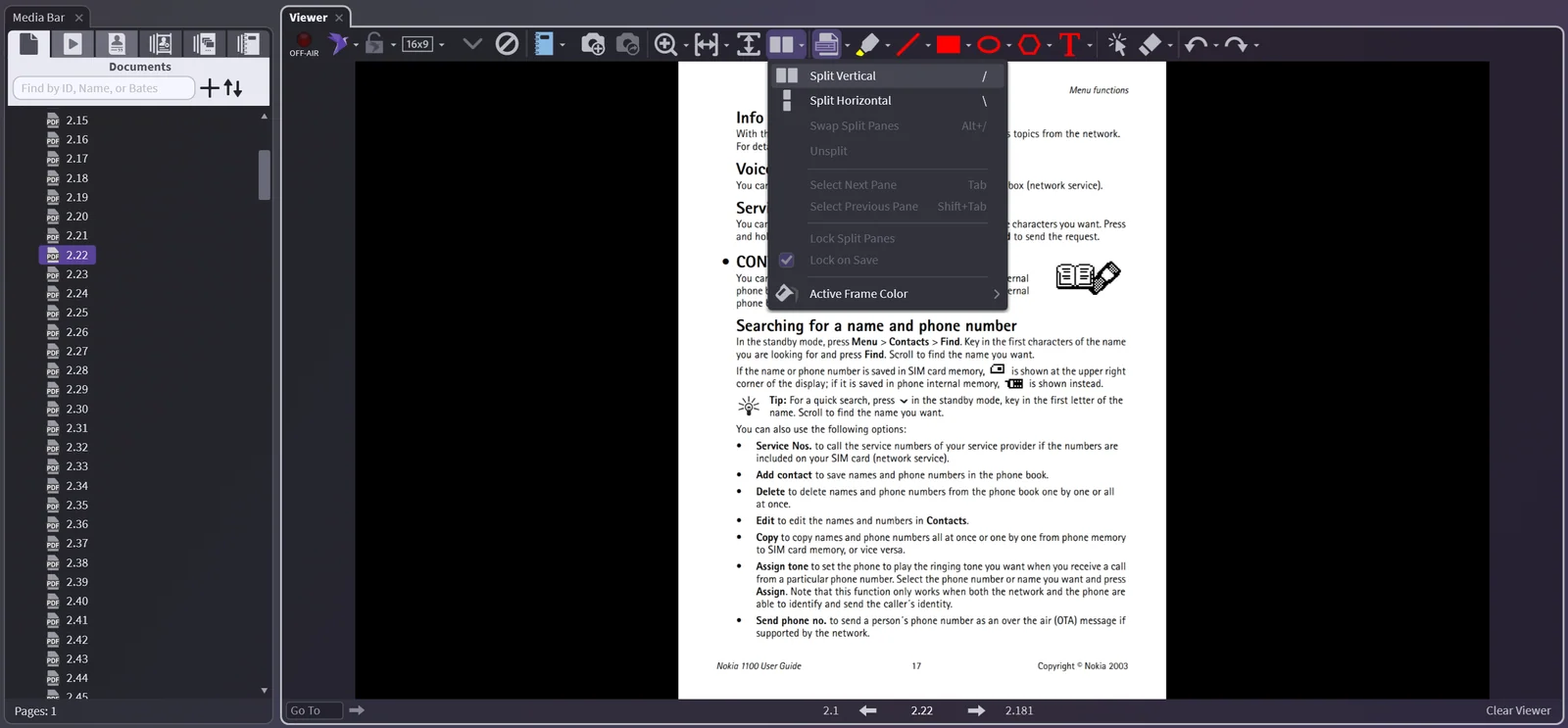
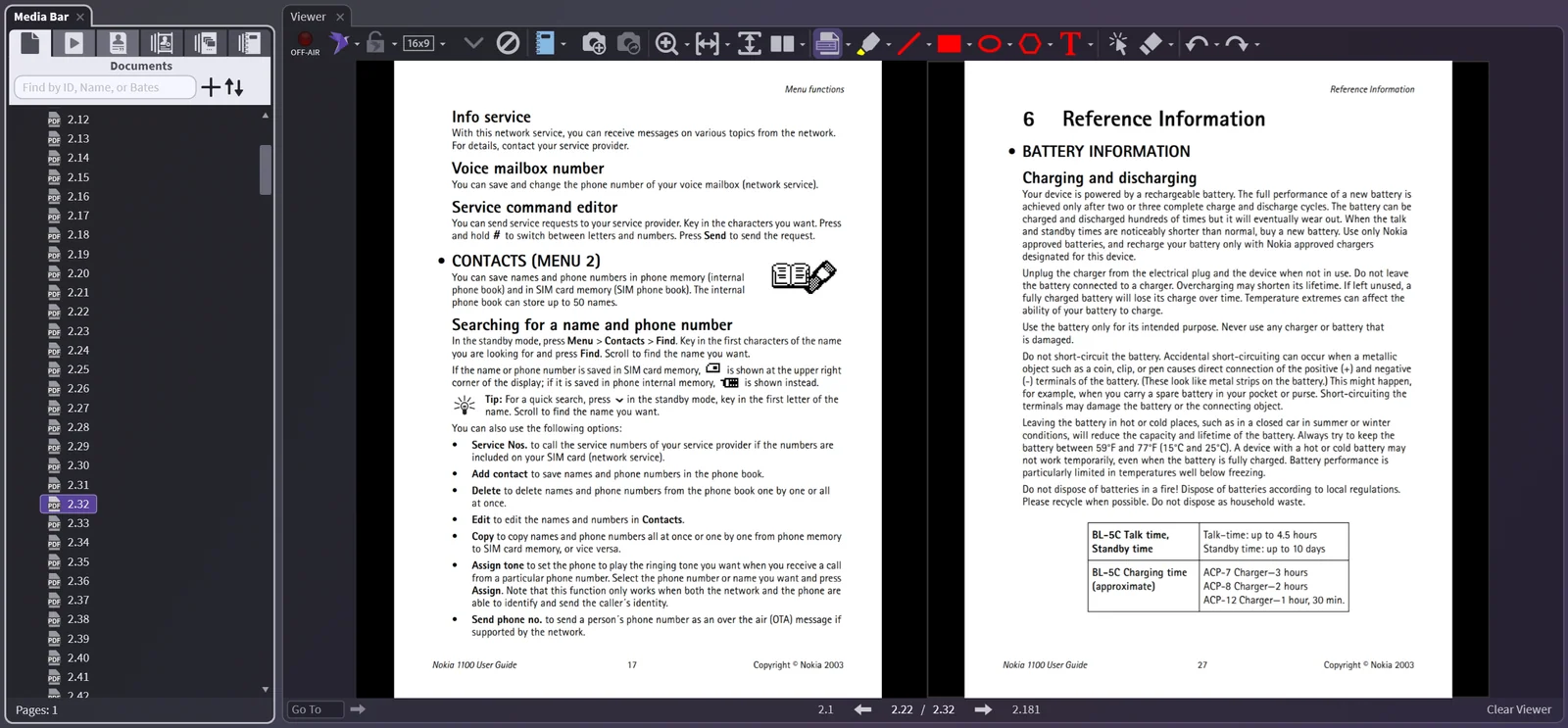
Click on the empty side and find the page you want to launch on that side.
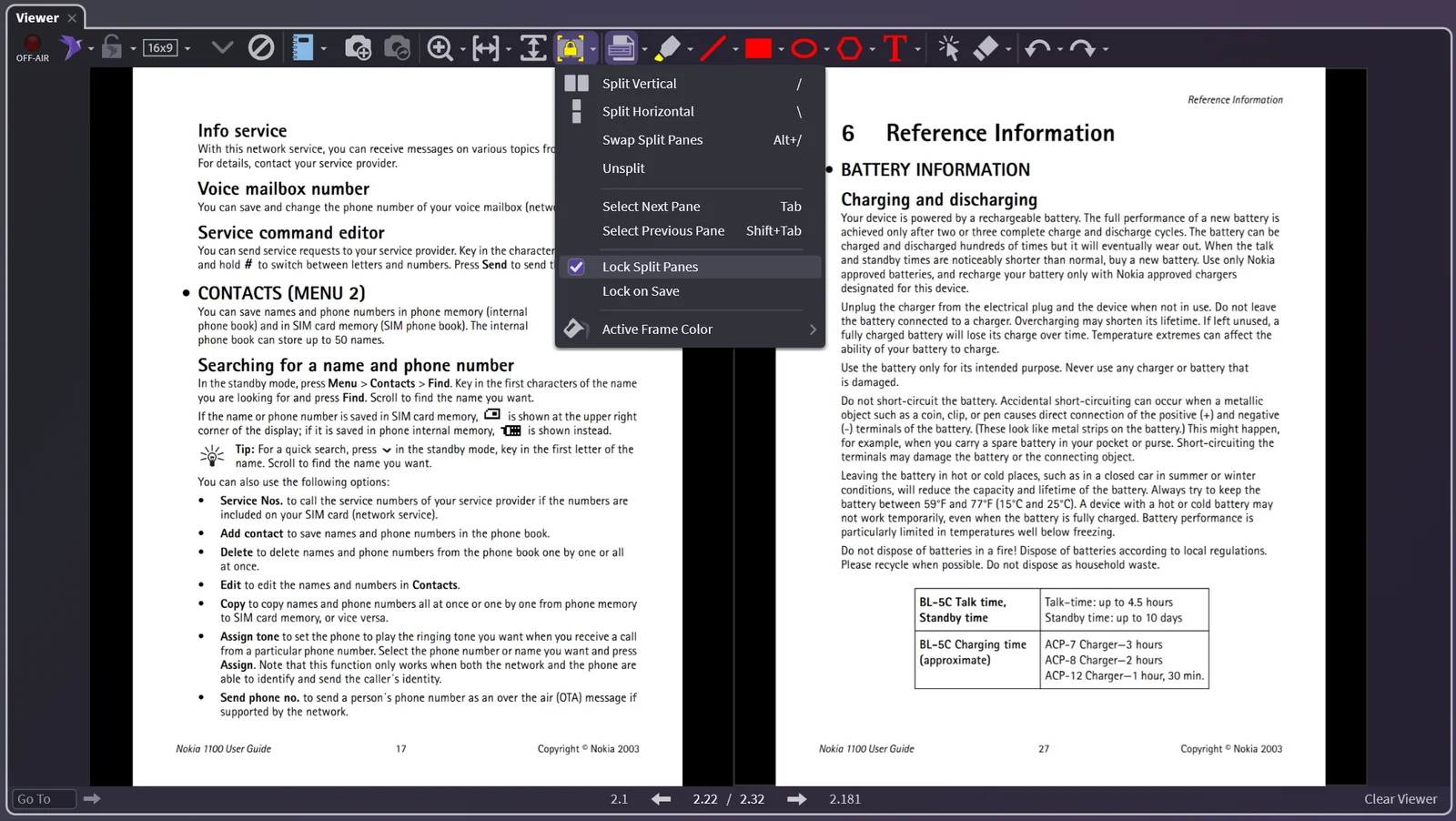
Click the split button on the toolbar again and select the lock option to lock both pages.
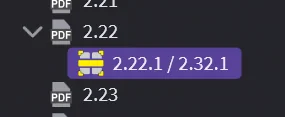
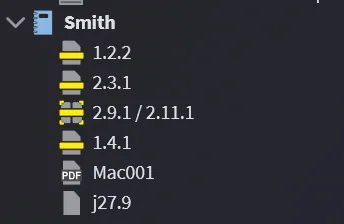
Save the annotation as usual. You will notice the locks on the annotation.
To unlock, clear the lock option on the split button. But remember if you saved it, it will still be a locked annotation. You will need to update the annotation after unlocking.
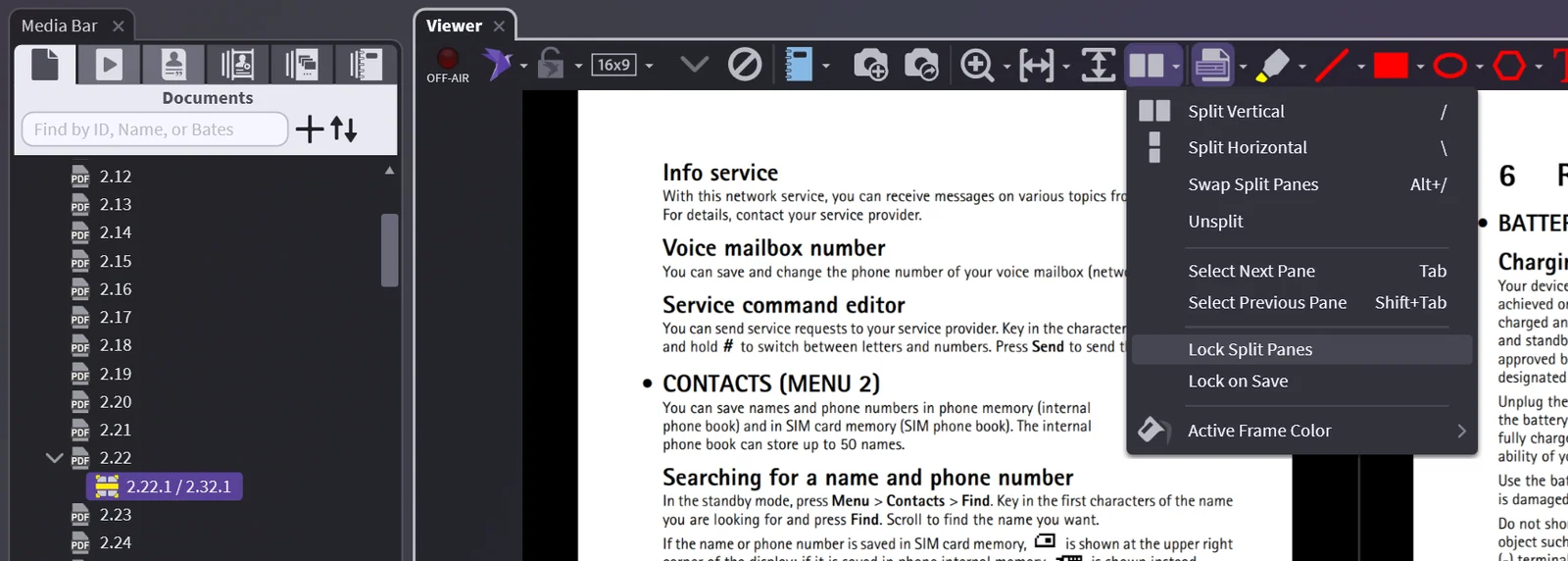
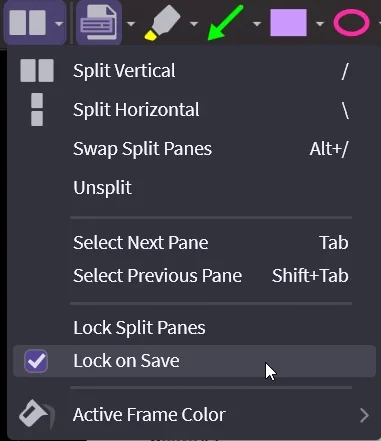
You can also lock all split screens automatically when you save the annotations. Make sure Lock on Save is selected. This will lock any split screen that is saved, including split screens saved in Presentation.
After a locked split screen, the next single-page ID you select opens as a single page in the Viewer or Presentation.
Frequently Asked Questions
-
Do I have to save the locked split screen for the next single-page ID to launch as a single page? No. You can lock a split screen in the Viewer during trial and launch it without saving, the next single page ID you launch will launch as a single page (no un-splitting screens necessary). You can even lock, launch, edit and then save in Presentation and it will save as locked.
-
What is this feature good for? If you present from a notebook by pressing the Down Arrow and then launching each item, locked and saved split screens present exactly as you set them up.
split screen, side by side, two pages, lock pages, zones, panels, unsplit
Still stuck? Email support@oncuetech.com.