



Page Dragging Split Screen and Scrolling
Updated January 13, 2025
You can scroll through pages with the mouse scroll wheel, as in a PDF reader. Hold down Ctrl and use the scroll wheel.
When showing the bottom of one page and the top of the next, you may not want an even split. You can accomplish this with a Page Dragging Split Screen.
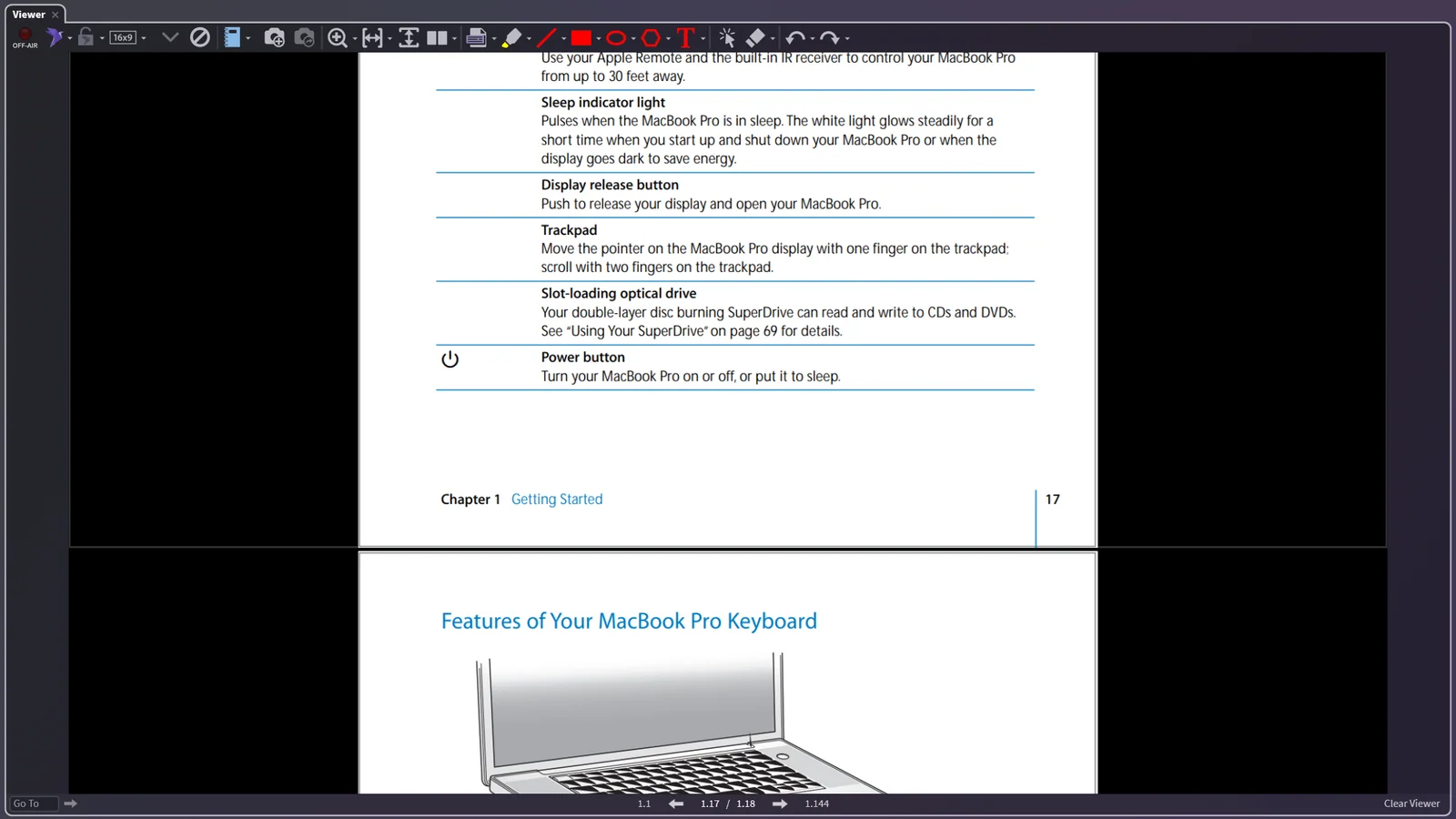
Pulling Up the Next Page
With the first page displayed, position the mouse near the bottom of the Viewer, hold down Ctrl, then right-click and drag the mouse up from the bottom of the screen to drag the next page up.
Pull down the previous page:
You can also CTRL + right-click and drag down from the top of the Viewer to pull down the end of the previous page.
Removing the split screen:
Double-clicking on the section you would like to keep will remove and clear the other section of the split screen.
Note: If you have zoomed or used full width in either pane, double-click once to clear the zoom and again to return to a single page.
Note: Keep in mind that if you hold down the CTRL key while you pan – as soon as the split line moves off the top of the page, it reappears at the bottom no matter what part of the page you are on.
drag pages, split screen, scrolling
Still stuck? Email support@oncuetech.com.