



Exporting Media Scripts
Updated October 28, 2026
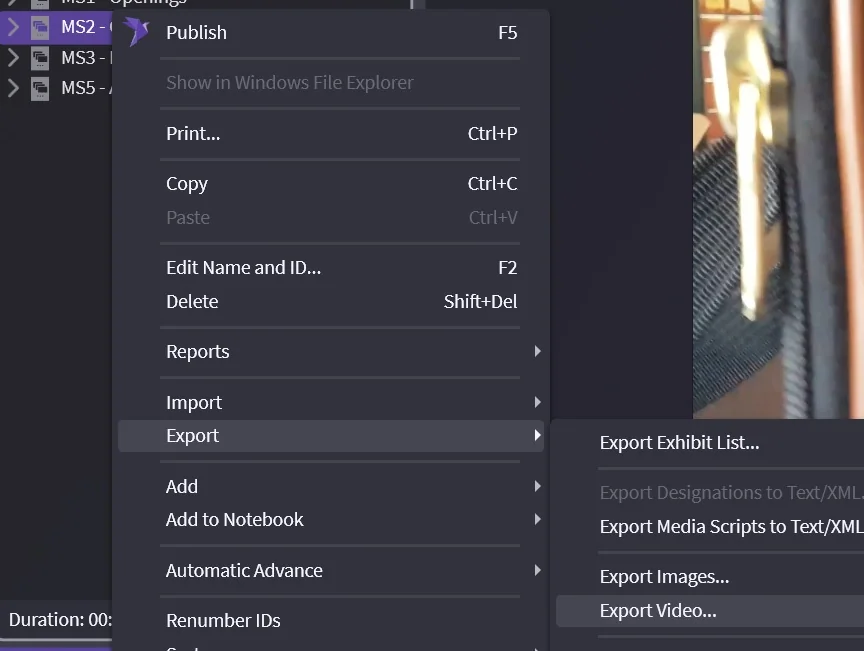
Right-click the Media Script and select Export > Export Media Script to Text/XML. There are several options, and they are explained below.
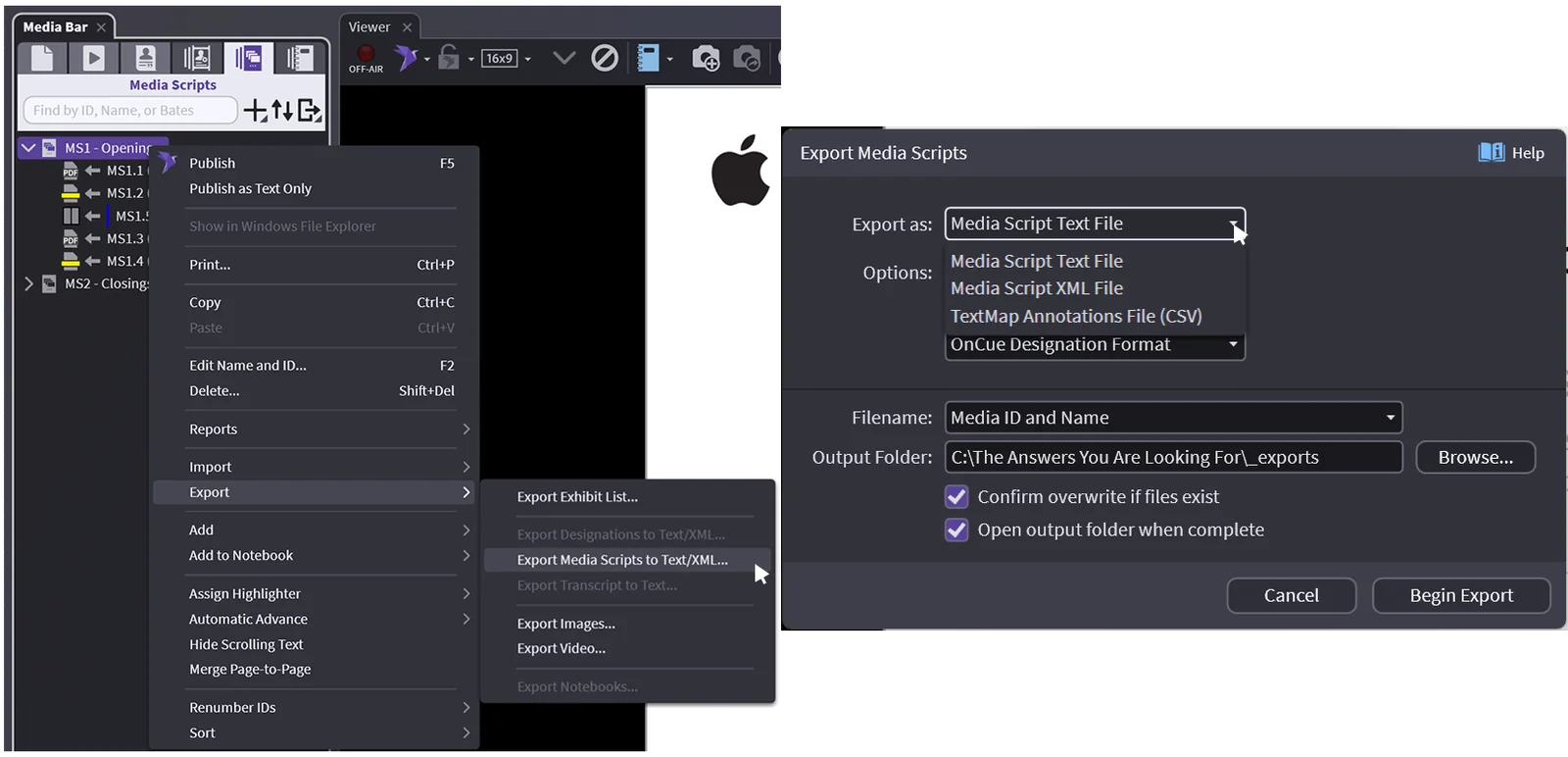
Export as Text
The OnCue Designation format matches the import file format, including headers. The text files contain Media IDs (document, page or annotation), designations, and clip information from the Media Script. Fine-tuning you have applied to designations is not included.
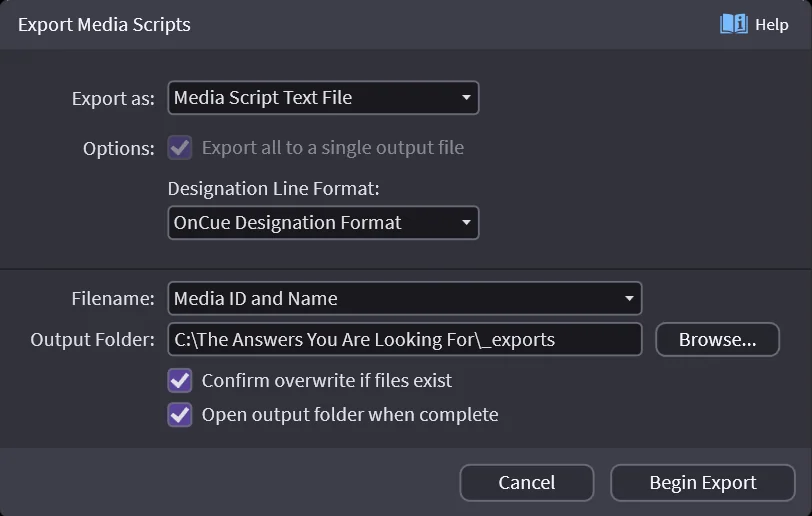
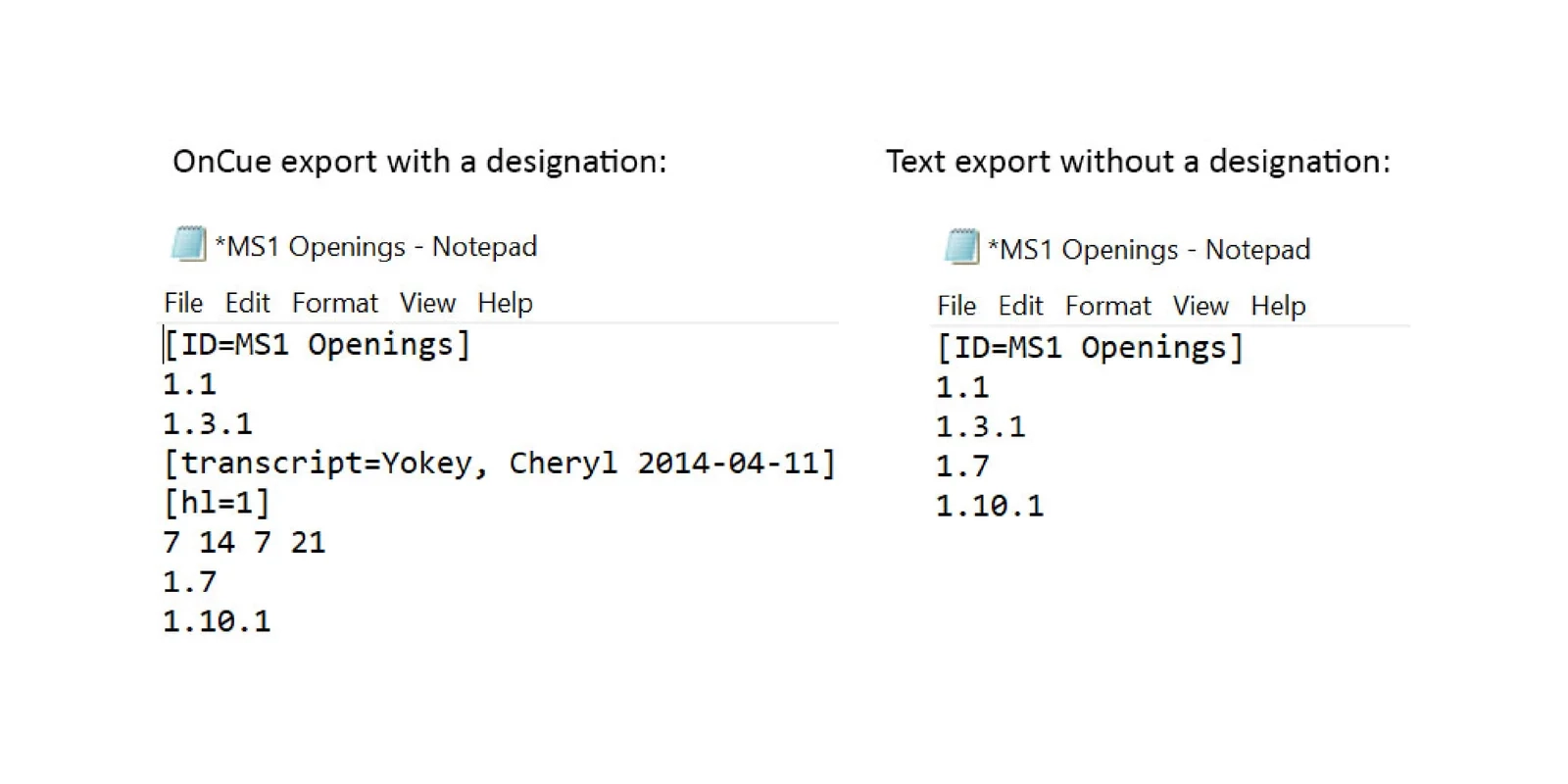
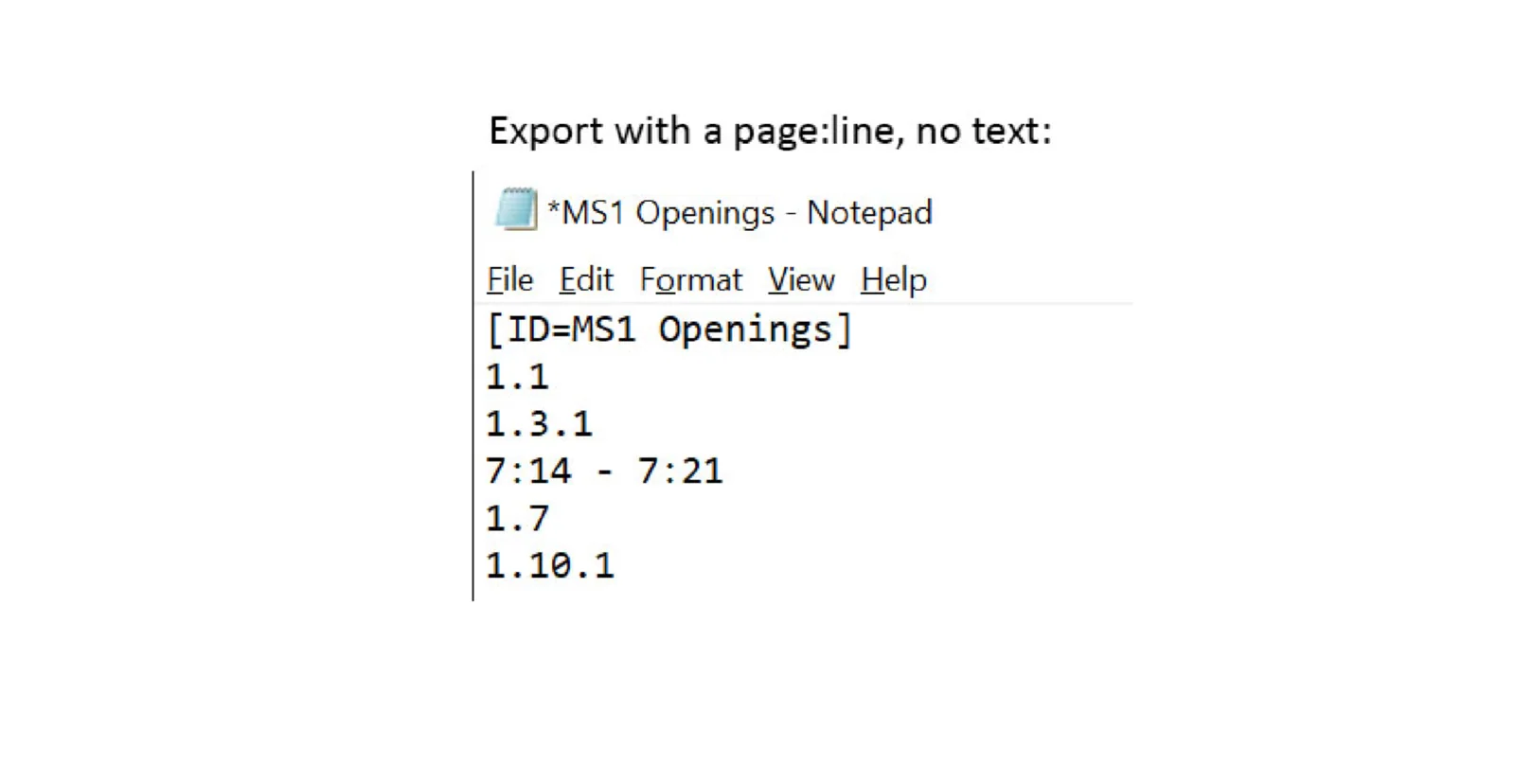
The other options are basic text files that use a “pg:ln to pg:ln” format, either with or without the transcript text. They resemble a simplified report, saved as a .txt file.
Export as XML
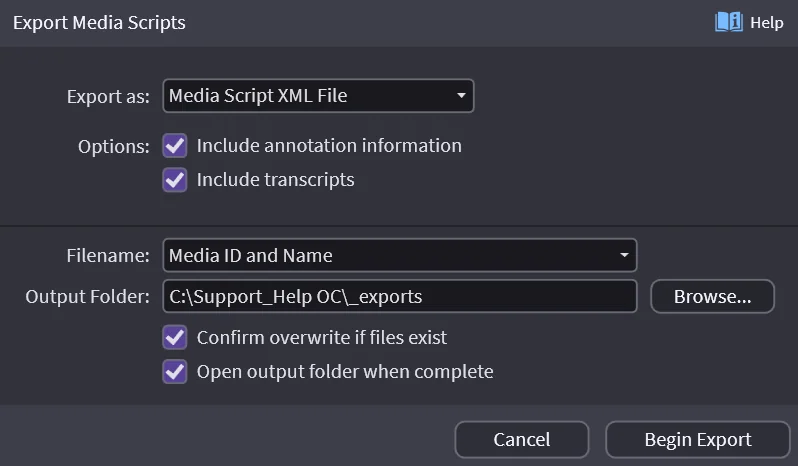
We created this export so you can share Media Scripts between different OnCue cases. This export includes the IDs, audiovisual clip information, a synced transcript (if selected), tuning information on all designations, document links, document clears, and document annotation information for those that are linked (optional).
Tip: You can export audiovisual clips separately and add them to your case – see Exporting Audiovisual Clips for more information.
The XML export is the one to use most of the time. It allows the transfer of all the necessary information (except for the source documents and clips) in a single file.
Export as Video
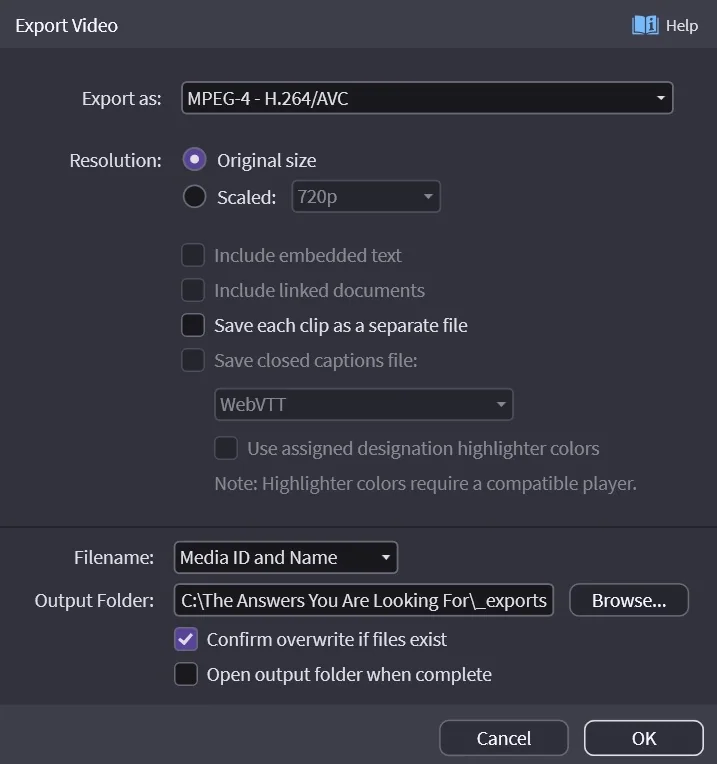
You can also export a Media Script to video. The video includes documents, clips, and designations. Set auto advance to a suitable wait time, or the documents will go by too quickly.
export video, export script, closed captions, mp4, render
Still stuck? Email support@oncuetech.com.